
 Catch Pokémon


Explore Nearby Stops
Make small position adjustments around PokéStops and Gyms instead of selecting a new destination for every move.
 Top-Views
 New-Updates
AnyTo / Use Cases / Pokémon GO Joystick
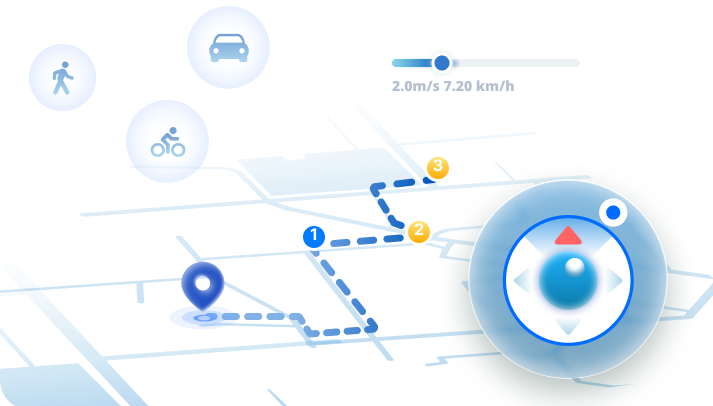
Explore with AnyTo's Pokémon GO joystick. Steer in any direction, adjust your speed, and pause when you reach your next stop—without repeatedly selecting points on the map.

Current Mode
Pokémon GO Joystick 3.6 km/h · Adjust direction and speedChoose where to go next without plotting every turn. AnyTo combines joystick movement with location search and teleport controls, so you can select an area and explore from there.
Make small position adjustments around PokéStops and Gyms instead of selecting a new destination for every move.

Use the on-screen joystick to steer. On desktop, keyboard controls let you change direction without dragging the map.

Find your starting area, then use the joystick for nearby movement. Keep location selection and local exploration in one workflow.
Turn, adjust your pace, or keep moving. Choose the control that fits your next move.
01 / FREE CONTROL
Change direction with the joystick as you explore. Make small turns near your target without setting up a fixed route.
02 / SPEED
Set your pace in AnyTo and change it as needed. Speed controls adjust simulated movement; they do not guarantee in-game distance credit.
03 / AUTO MOVE
Use automatic movement without holding the joystick. Adjust direction along the way, then pause or stop when you want to stay put.
3 STEPS TO START
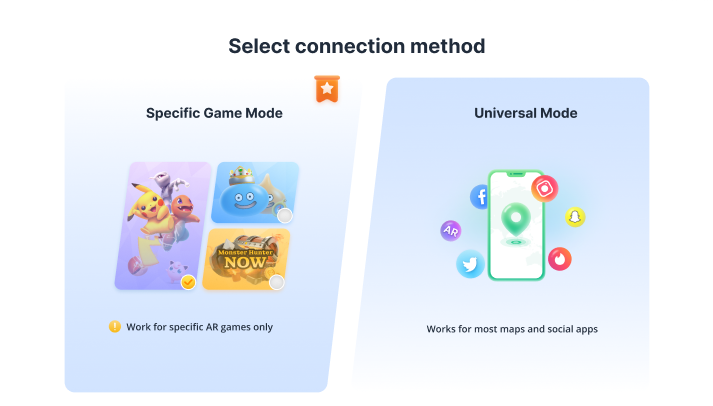
Start with the desktop setup below. Connection steps and controls vary by device and AnyTo version.
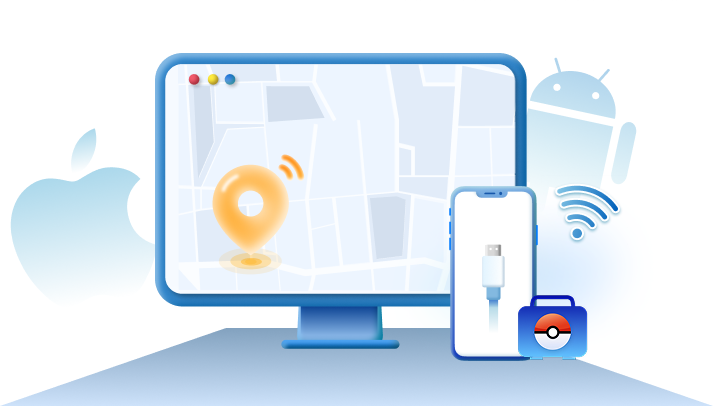
Open AnyTo on Windows or Mac. Connect your phone and follow the device-specific prompts to complete setup and load the map.
Confirm your starting position on the map, select Joystick Mode, and set your movement speed before you begin.
Use the joystick to move, then check your position in Pokémon GO. Adjust direction or speed in AnyTo, and pause whenever you need to stop.
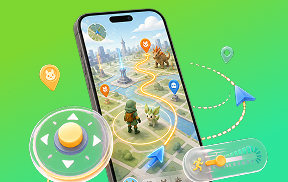
Move around your selected area and choose your next direction as nearby Pokémon appear on the map.

Make a short directional adjustment toward a PokéStop, then check your position in the game before interacting.
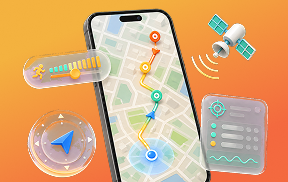
Steer toward a visible Gym without rebuilding a route for each turn. Check the game for access and raid availability.
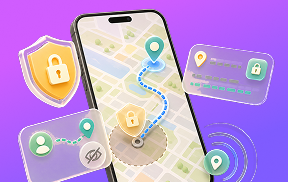
Stop simulated movement while you review the game map or decide where to go next. Resume from AnyTo when ready.

AnyTo offers versions for iOS and Android, plus desktop software for Windows and Mac. Setup requirements vary by device and version. Check the device-specific AnyTo guide before installing; the steps above describe the desktop workflow.
Yes. Start with the free trial to check setup and the features available on your device. Trial access is limited; review the limits shown in your version and the plan details before purchasing.
Yes. Adjust direction during movement, change the speed, or pause when you reach your chosen spot. Automatic movement lets you continue without holding the joystick; it does not automatically catch Pokémon or spin PokéStops.
First check whether the position is moving on the AnyTo map. Then check your device connection and location permissions. If Pokémon GO still shows the old position, stop simulated movement and follow the troubleshooting steps for your AnyTo version.
Stop simulated movement and use the location-reset option available in your AnyTo version. If the virtual position remains, restart your phone and check its location in a map app before reopening Pokémon GO.

Compare joystick apps and mods for iOS and Android, including setup requirements, features, and limitations.

Explore joystick options for Monster Hunter Now, with setup instructions and common troubleshooting tips.

Review iTools BT 2.5 features, setup requirements, pros and cons, and alternatives for Pokémon GO.
Choose your direction. Set your pace. Pause at your next stop.
Download AnyTo and check the setup and trial features available for your device.