
 Top-Views
 New-Updates


Struggling to run Pokémon GO on Bluestacks? AnyTo lets you spoof your location safely on PC or mobile, bypassing emulator crashes. Easy setup, reliable, and ready to use. Try It now!
Bluestacks has long been the go-to Android emulator for running mobile games on PC, but not anymore for Pokémon GO fans. Recently, players found that launching or logging in to Pokémon GO on Bluestacks often ends in an instant crash or black screen. So, what's going on?
In this guide, we'll break down why Pokémon GO crashes on Bluestacks, whether it's still possible to play in 2026, and the best Bluestacks Pokémon GO alternatives that actually work right now.

Quick Navigation

Does Pokémon GO Work on Bluestacks?
No, Pokémon GO does not work on Bluestacks anymore. It's been confirmed by the official on Reddit.

Niantic and Scopely have tightened restrictions against emulators, which means even if you manage to install the game, it will likely crash or fail to load.
It's not just the official Pokémon GO app—PGSharp, the popular modded Pokémon GO apk, doesn't work on Bluestacks anymore either. The new Bluestacks engine blocks PGSharp from loading properly, so while it might download successfully and even reaches to the login page, the game won't actually launch.

Can You Still Play Pokémon GO on PC without Bluestacks in 2026?
Yes—but with serious limitations. You can still play Pokémon GO on PC, but don't expect it to be simple or risk-free.
Running Pokémon GO on an emulator is considered spoofing, since you're bypassing the game's location-based mechanics. Niantic strictly forbids this, and their detection system can easily identify emulated environments. That's why many players experience instant crashes, login errors, or even bans after trying.
In simple terms: Pokémon GO bans emulators, and modern versions of Bluestacks, NOX, and LD Player are no longer compatible.
How to Play Pokémon GO on PC: Bluestacks Alternatives
| Feature | AnyTo + Official App | PGSharp + MuMu Player | Android Studio + PGSharp Launcher | Modded VMOS App with Root |
|---|---|---|---|---|
| Ease of Setup |

|
|
|
|
| Official App Availability | ✅ | ❌ | ❌ | ❌ |
| Stability in Play |
|
|
|
|
| Detection Risk | Lower risk because it's the official app | Higher emulator footprint | Higher technical risk | Elevated risk due to root |
| Best For | All players | Players comfortable with emulators | Tech-savvy players testing launcher tools | Users who want deeper tweaks via root |
1 AnyTo—Screen Mirror while Spoofing
Although Pokémon GO does not work in Bluestacks anymore, there's a clever workaround to play Pokémon GO on a computer. AnyTo is one of the best modern alternatives.
It's not an emulator. It’s a location changer with screen mirroring that works smoothly with the official Pokémon GO app, letting you control and interact with the game using your mouse.


AnyTo's Key Features
- Change your location anywhere in the world and stay there without snapping back to your real GPS.
- Play Pokémon GO on your computer by mirroring your phone's screen. You can use your mouse to move, throw Pokéballs, and interact in real time.
- 360-degree Pokémon GO joystick and auto-walk with realistic movement.
- Trainer-friendly tools including Pokémon IV Checker and maps for PokéStops, Gyms, and active raids.
How to Play Pokémon GO on PC with AnyTo
Step 1. Follow the guide to set up AnyTo. Connect your device to your computer via Bluetooth (recommended), USB, or Wi-Fi, then choose Game Mode for Pokémon GO.

Step 2. Open Pokémon GO on your phone, then click the Screen Mirroring button on the right sidebar to mirror your device's screen to your computer. In the casting window, you can use your mouse to control the game, take screenshots, record gameplay, and even perform one-click Pokéball throws.

Step 3. In the casting window, you can use your mouse to control the game, take screenshots, record gameplay, and even perform one-click Pokéball throws.
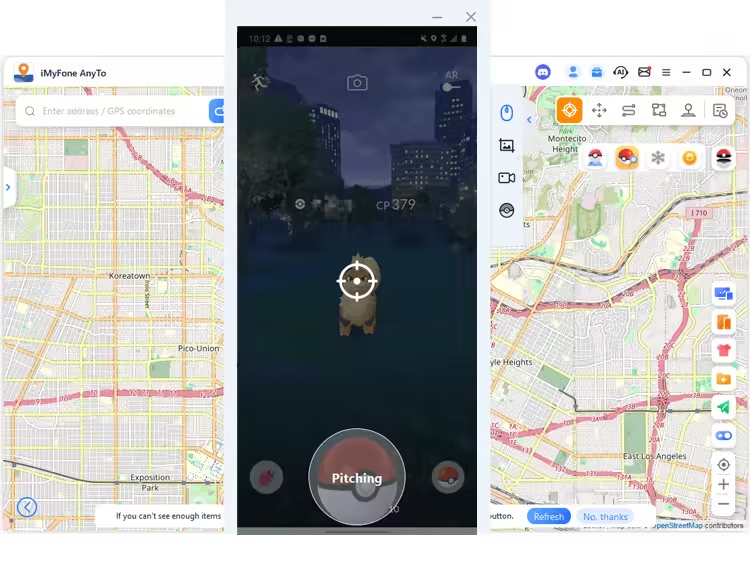
To change location in Pokémon GO, search for a place, enter the coordinates, or just tap on the map, choose Teleport or other modes, click Move, and you're good to go.

2 PGSharp + MuMu Player
While the official Pokémon GO app doesn't run on emulators, using a modded APK may work, and PGSharp and MuMu Player 6 are an exact match. However, PGSharp isn't officially supported on emulators, meaning it can break at any time or stop working after an update. Even when it does run, there's no guarantee of stability or consistency.
That said, if you still want to give it a try, MuMu Player 6 is one of the few emulators where PGSharp can sometimes run with the right setup.
Overview on how to install and set it up
Step 1. Download MuMu 6 (64-bit version V2.7.23.0) and the PGSharp Android 6 package on Your PC's browser (not the one in MuMu).
Step 2. Drag the PGSsharp APK into MuMu Player or use the APK Install option to install PGSharp Android 6.
Step 3. Launch the modified Pokémon GO and good luck.


Note
While this setup may work temporarily, remember that PGSharp and other modded tools on emulators are fragile by nature. Niantic's anti-cheat system can easily detect emulated environments, so if you want a safer and more stable long-term solution, consider using tools like AnyTo that work directly with your phone instead of relying on emulator spoofing.
3 Android Studio + PGSharp Launcher
This method combines several advanced tools: Android Studio + Digital Device + RootAVD with Magisk + PGSharp Launcher + the official Pokémon GO app. It's one of the most complex setups to emulate Pokémon GO on PC, and it's really not beginner-friendly.
Android Studio is a software mainly used for developing Android apps—it's not built for gaming. So if you're not familiar with coding or virtual device management, we suggest other options obove.

There's no official step-by-step guide to set this up, so it's largely a self-exploration process. Below is a rough outline of what the setup looks like:
Installing Android Studio
- Step 1. Download and install Android Studio. When prompted, make sure “Android Virtual Device” is checked.
- Step 2. On the “Import Android Studio Settings” popup, click Okay.
- Step 3. When you see the Welcome to Android Studio screen, choose New Project → No Activity.
- Step 4. Set the Minimum SDK to Android 12, then click Finish.
- Step 4. Allow ADB permissions when prompted.
Creating an Android Virtual Device (AVD)
- Step 1. Follow the guide here.
- Step 2. Pick Pixel 4 XL as your device and click Next.
- Step 3. Download the Android 11 system image (R) and click Finish.
- Step 4. Rename your AVD or leave it as “default.”
- Step 5. Go to Device Manager and run your Pixel 4 XL API 30.
- Step 6. Wait for the virtual phone to appear on your screen. The controls will show up at the top.
RootAVD Setup
- Step 1. Visit RootAVD on GitHub
- Step 2. Click CODE and download the ZIP file.
- Step 3. Extract the folder into your Downloads directory.
- Step 4. Right-click the rootAVD-master folder and select Open in Terminal.
- Step 3. When the command prompt appears, type: rootAVD.bat ListAllAVDs
- Step 4. Press Enter to list available AVDs.
At this point, you'll need to follow additional instructions from RootAVD and Magisk documentation to finish rooting the virtual device. Once that's done, you can install PGSharp Launcher and the official Pokémon GO app inside the rooted emulator.
 AnyTo
AnyTo
This method comes with a warning: it's unstable, extremely technical, and prone to breaking after updates. Unless you're an experienced Android developer, it's much safer and faster to use tools like AnyTo, which can spoof locations and mirror your gameplay directly from your phone to your PC without any emulator setup or root access.
4 Modded VMOS app with Root
Some players still talk about using a modded VMOS (a virtual Android-on-Android container) because it lets you run a rooted Android environment on your phone and install spoofing tools inside that sandbox.

In theory, that gives you the flexibility of an emulator while keeping your main system untouched — which sounds attractive. But there are serious problems with the common way people obtain a "free" VMOS build today, like forced updates & paywalls, high-risk pirated builds, privacy & financial risk, and no guarantees & no support.
Because of these downsides, I strongly do not recommend using pirated or modded VMOS builds.
If you still want the VMOS route (safer advice):
- Use only official VMOS releases from the Play Store or the developer's official site.
- Keep the VM isolated. Do not log into personal accounts inside the VM, and do not store payment or sensitive info there.
- Treat anything you run inside a rooted VM as potentially insecure: use throwaway game accounts and sandboxed credentials.
- Keep backups of important data and monitor your accounts for suspicious activity.
Final Thought
If you searched for Bluestacks Pokémon GO hoping for an easy PC playthrough, the short answer is: not anymore. Running the game inside an emulator will only increase your risk of detection and account action.
That said, you still have options. The safest, most reliable route in 2025 is to keep the game running on a real phone and use tools that mirror or assist play—like screen-mirroring + location changers (e.g., AnyTo) that work over Bluetooth—so you avoid emulator fingerprints while getting a big-screen experience. If you do experiment with emulators, treat them as a last resort: use throwaway accounts, test carefully, follow cooldown rules, and keep backups.

AnyTo Pokémon GO Spoofer
Spoof Pokémon GO on PC
168,282 people have downloaded
- Fake iOS/Android GPS location to anywhere in the world instantly.
- 100% Work with location-based apps such as AR games, social platforms, etc.
- Joystick to simulate GPS movement freely when playing games.
- Import / Export GPX file to save your favorite routes.
- Compatible with All iOS & Android versions.


Ryan Miles is a seasoned gamer and mobile strategy writer with over 5 years of hands-on experience in Pokémon GO spoofing and GPS-based games. Known for breaking down complex location tricks into beginner-friendly guides, Ryan’s mission is simple: help you explore more, catch faster, and play smarter without ever leaving home.
-
DeFit Pokémon GO 2026: Still Working? Best Alternative
Wondering if DeFit still work for Pokémon GO in 2025? How do you use it? What happens if it doesn't work? Find your answers in this DeFit Pokémon GO guide!
29 mins read -
Is UnicTool TailorGo Worth It? Review, Safety & Alternative
What is UnicTool TailorGo? How does TailorGo work with Pokémon GO? Is it worth trying? Read this review on safety, features, and the best alternative now!
46 mins read -
Is TweakBox Pokémon GO Still Working? Best Alternatives!
What is TweakBox? Does TweakBox still work? Does TweakBox have Pokémon GO? What are the best alternatives for TweakBox Pokémon GO? Find the answers here!
6 mins read -
How to Play Pokémon GO on a Mac: 3 Proven Ways for 2026
Are you wondering if it's possible to play Pokémon GO on Mac? Our article provides the most workable solutions to enjoy playing Pokémon GO on your Mac.
6 mins read -
Top 8 Pokémon GO Raid Finders to Find Remote Raids in 2026
Find and join global Pokemon GO raids fast with the best Pokemon GO raid finder apps in 2026. Discover Mega, Shadow, and 5-Star raids—no walking required!
47 mins read -
Pokémon GO TutuApp 2026: Status, Download & Best Alternative
Does Tutuapp Pokémon GO still work in 2026? Can you download Tutuapp Pokémon GO on iOS and Android? Is Tutuapp Pokémon GO safe? Find out all the answers here!
37 mins read
Was this page helpful?
Thanks for your rating
Rated successfully!
You have already rated this article, please do not repeat scoring!