
 Top-Views
 New-Updates


Looking for an iAnyGo alternative? AnyTo is your best bet. Built for stability and anti-ban protection, it makes Pokémon GO spoofing simple and reliable. No mod, no jailbreak/root!
iAnyGo is a location-spoofing tool that many Trainers use to move in Pokémon GO without walking. It helps with grinding Candy, hatching Eggs, or joining raids in faraway places.
However, a lot of users run into iAnyGo not working issues when trying to use it with Pokémon GO. In this guide, we'll break down the most common iAnyGo Pokémon GO problems, how to fix them.
Quick Navigation
- Why iAnyGo May Not Work in Pokémon GO
- 5 Common iAnyGo Not Working Problems & How to Fix Them
- Failed to Detect Location 12
- Device Connection Failed
- Apple Driver Installation Failed
- Failed to Load Resource
- Stuck on Loading Screen After Connecting to Bluetooth
- Is iAnyGo Good for Faking GPS in Pokémon GO?
- Best iAnyGo Alternative for Spoofing: AnyTo [Video]

- FAQs about iAnyGo Pokémon GO
- Conclusion
Why iAnyGo May Not Work in Pokémon GO
Pokémon GO has one of the strictest anti-cheat systems in mobile gaming. Niantic/Scopely constantly updates its detection methods to spot spoofing tools and protect fair gameplay.
For apps like iAnyGo to function, every part of the setup—from drivers to Bluetooth pairing—must be correct. If even one step is misconfigured, the app may fail to run or trigger Pokémon GO not working.
Another common reason is game updates. When Niantic rolls out a new version of Pokémon GO, it can temporarily break compatibility with iAnyGo. The developer team usually needs some time to adjust the software, which is why the app may stop working after an update until a patch is released.
5 Common iAnyGo Not Working Problems & How to Fix Them
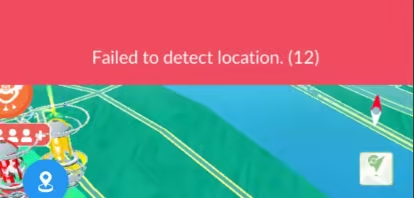
1 Failed to Detect Location 12
This is one of the most frustrating errors iAnyGo users face. It usually happens because Niantic detects that you're trying to spoof your location with a developer tool. In recent updates, tethering via USB cable has become detectable and often triggers this error.
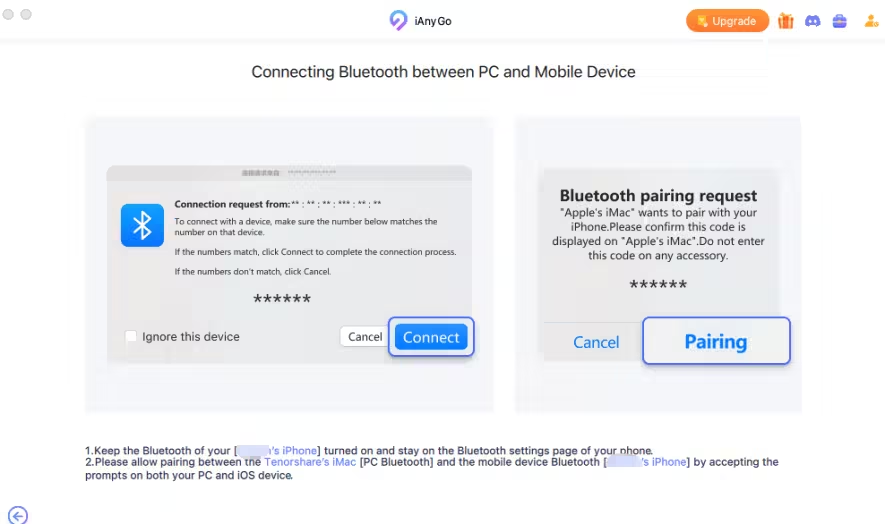
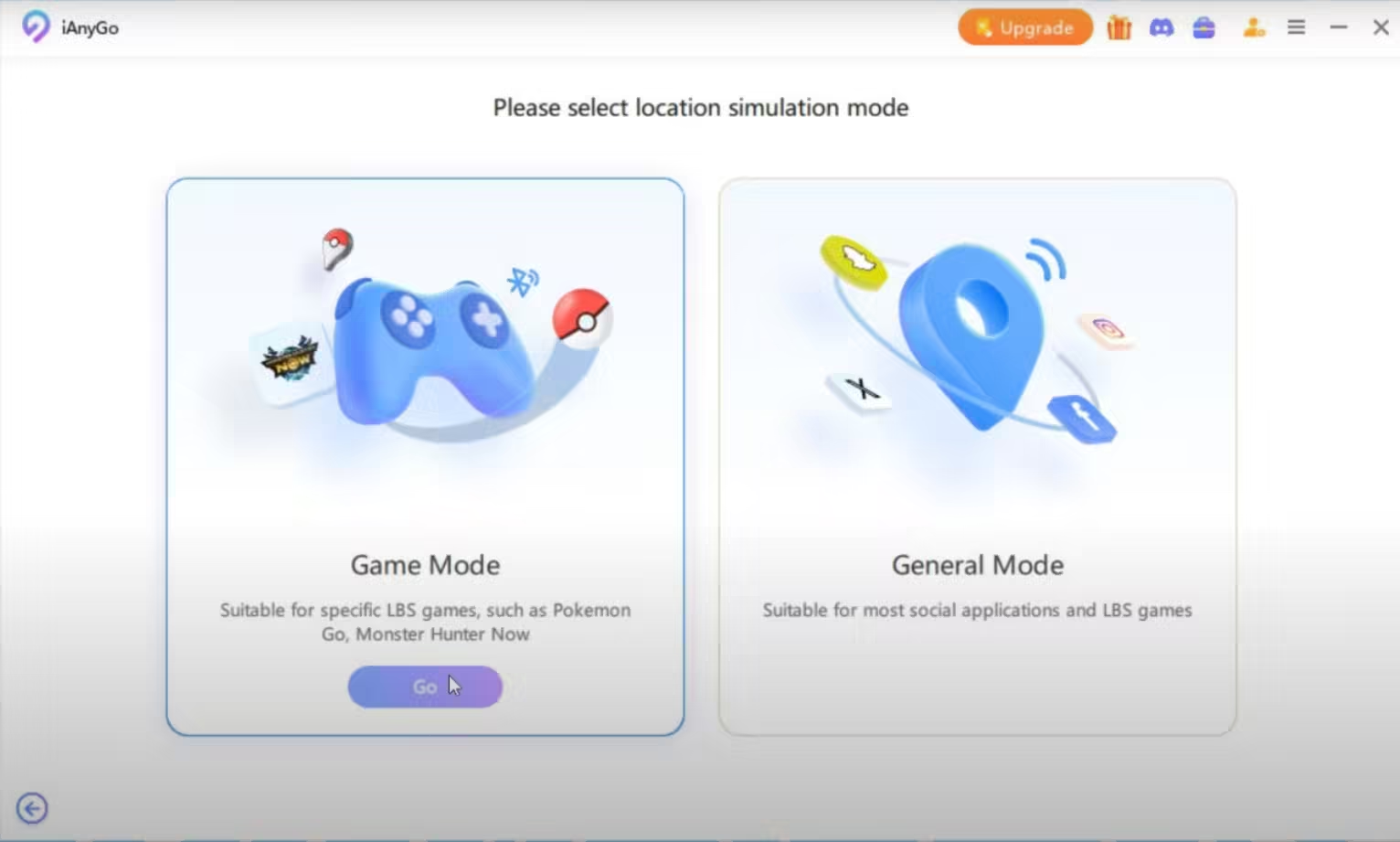
A workaround that works for many players is switching to Bluetooth connection and enabling Game Mode in iAnyGo. Bluetooth spoofing is currently harder for Niantic to detect and allows a more stable GPS signal compared to cable tethering.
2 Device Connection Failed
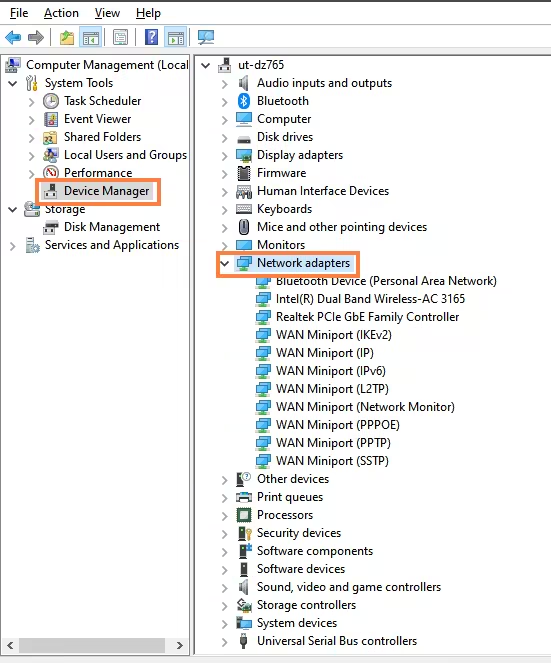
Device connection failed error can happen with either WiFi or Bluetooth connections, often due to virtual adapters or pairing issues. Common fixes like restarting your PC, unplugging, or toggling developer mode often don't work. Here are the more specific solution for each situation:
WiFi connection failed
- Righ-click and open Device Manager → Network adapters.
- Disable and then re-enable your WiFi network connection.
- Look for any "ghost" or unnamed network devices, which are virtual adapters iAnyGo uses, and disable/re-enable them as well.
Bluetooth connection failed
If Bluetooth isn't connecting:
- Clear all existing Bluetooth pairings on your computer.
- Remove the Bluetooth pairing for your computer from your phone.
- Restart the pairing process, beginning with your phone's Bluetooth.
 GPS Location Changer AnyTo
Tired of iAnyGo errors breaking your Pokémon GO sessions? AnyTo offers a smoother, safer way to spoof location—no constant troubleshooting, no confusing workarounds. With one click, you can move freely, hatch Eggs faster, and join Raids worldwide without worrying about crashes.
3 Apple Driver Installation Failed
Apple driver installation failed is often caused by outdated iOS versions or conflicts with other software. To fix it:
- Upgrade your device to iOS 17.4 or later, which eliminates the need for a separate driver.
- Uninstall any similar software from other providers that might interfere.
- If upgrading isn't possible:
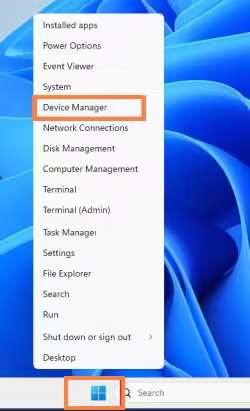
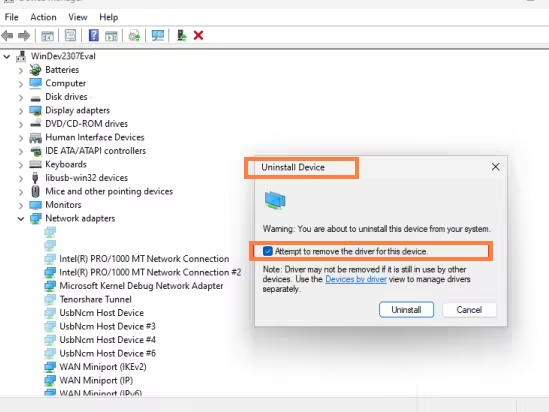
- 1. Right-click and open Device Manager.
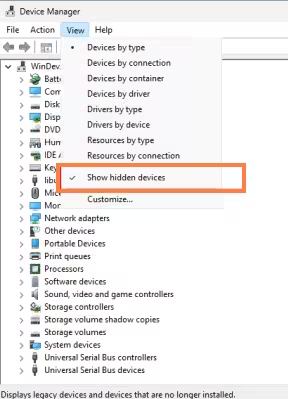
- 2. Click Show Hidden Devices.
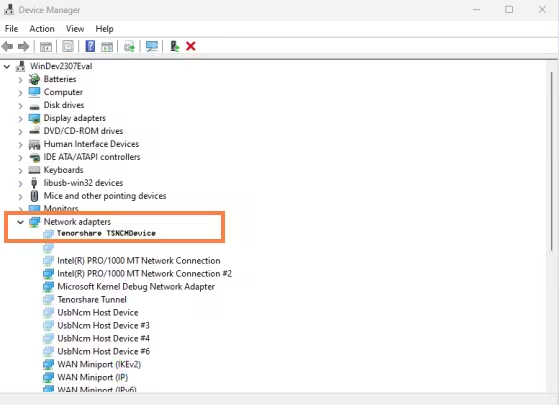
- 3. Locate Tenorshare tsncmdevice under Network Interface.
- 4. Right-click → Remove Device → Remove Driver.
- 5. Also uninstall the Apple NCM Device for iOS 17.
4 Failed to Load Resource
The Failed to Load Resource error occurs when iAnyGo cannot access a necessary server file or resource, which leads to the app can't run properly. To fix it:
- Check your internet connection and restart iAnyGo.
- Update iAnyGo to the latest version, as updates often fix bugs.
- Keep your iOS updated for better compatibility.
- Reinstall iAnyGo. Uninstall the app, restart your computer, and reinstall to remove any corrupted files causing the error.
5 Stuck on Loading Screen After Connecting to Bluetooth
The stuck on loading screen after connecting to Bluetooth issue happens when iAnyGo fails to fully load the map interface after pairing with your device. To fix it:
- Ensure both your PC and mobile device have a stable internet connection.
- Give the app a minute or two to establish the Bluetooth connection and load the map.
- Disconnect and reconnect Bluetooth, ensuring network stability.
- Reboot your phone to clear temporary issues, then try connecting again.
Is iAnyGo Good for Faking GPS in Pokémon GO?
Yes, iAnyGo is generally considered safe for GPS spoofing in Pokémon GO. From my own experience, it carries a much lower ban risk compared to mods like PGSharp or PGTools, especially after the major ban wave in July 2025. Many users report zero strikes even after years of use.
The key advantage in 2026 is its Bluetooth connection method, which replaces outdated cable tethering. This approach makes Pokémon GO spoofing smoother, more stable, and less detectable.
Best iAnyGo Alternative for Spoofing: AnyTo [Video]
Watch this video to learn how AnyTo works

If you're looking for a reliable iAnyGo alternative, AnyTo Pokémon GO spoofer is worth considering. It's designed to make location spoofing accessible and straightforward for all players. As a pioneer of Bluetooth connection methods, the AnyTo team is highly skilled at navigating Pokémon GO's anti-cheat system and staying updated with its core changes.


AnyTo's Key Features
- Stable GPS spoofing with precise location control for smoother gameplay.
- Safe Bluetooth spoofing and avoid the risks of USB tethering or unsafe mods.
- Regular updates aligned with the latest Pokémon GO versions.
- Get real-time help from the developer team on Discord for troubleshooting or guidance.
- Fixed the "Failed to detect location (12)" error.
- Optimized to minimize battery drain during extended spoofing sessions.
- Works seamlessly on Android 16 and iOS 26.
- Control up to 10 devices simultaneously with multi-device support.
How to teleport in Pokémon GO with AnyTo
Step 1. Install AnyTo on your PC and follow the instructions to setup.
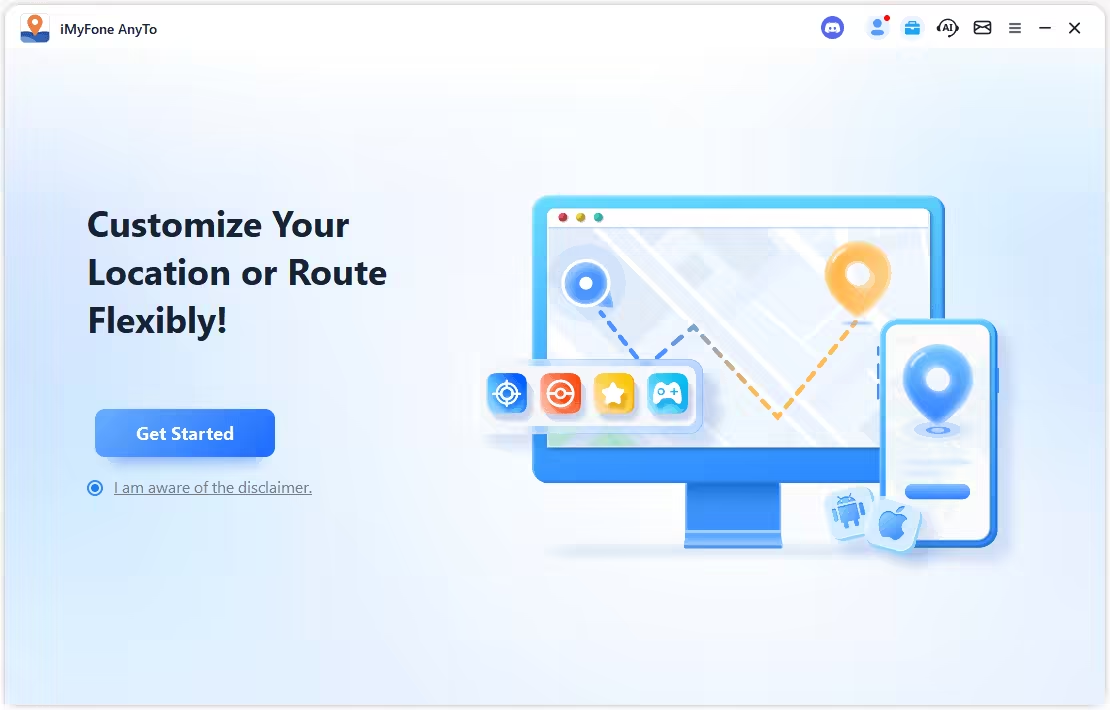
Step 2. Launch AnyTo and connect your phone to your PC.
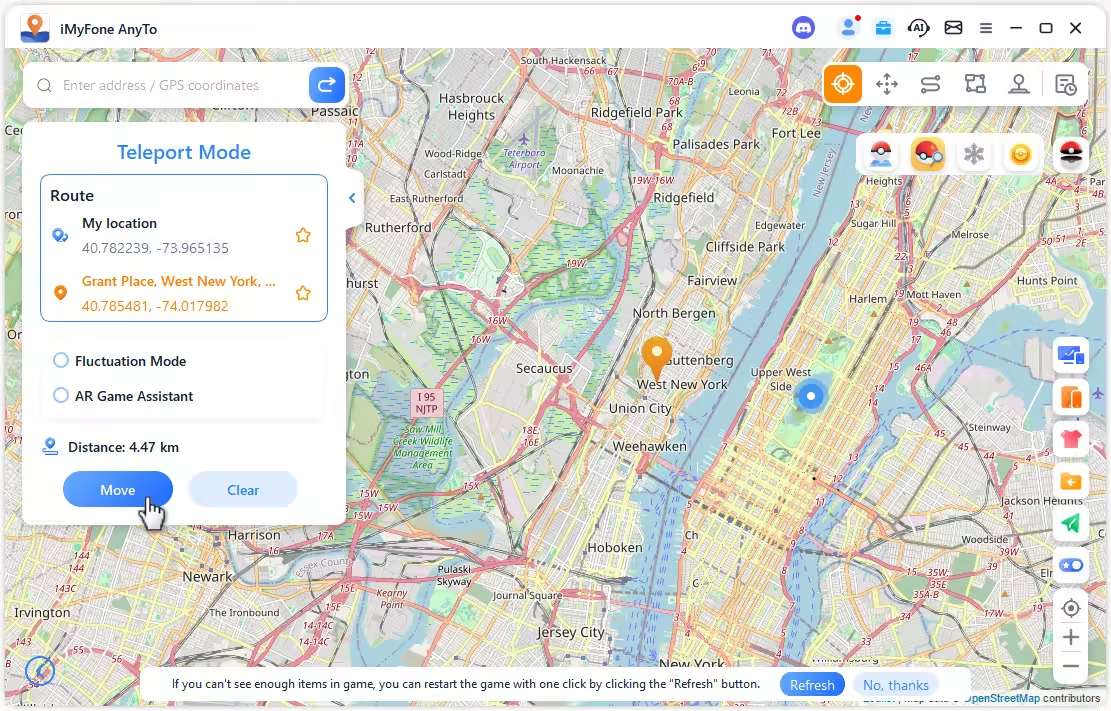
Step 3. Set your destination by tapping the map, entering coordinates, or searching for a place. Then select Teleport Mode to change your location.
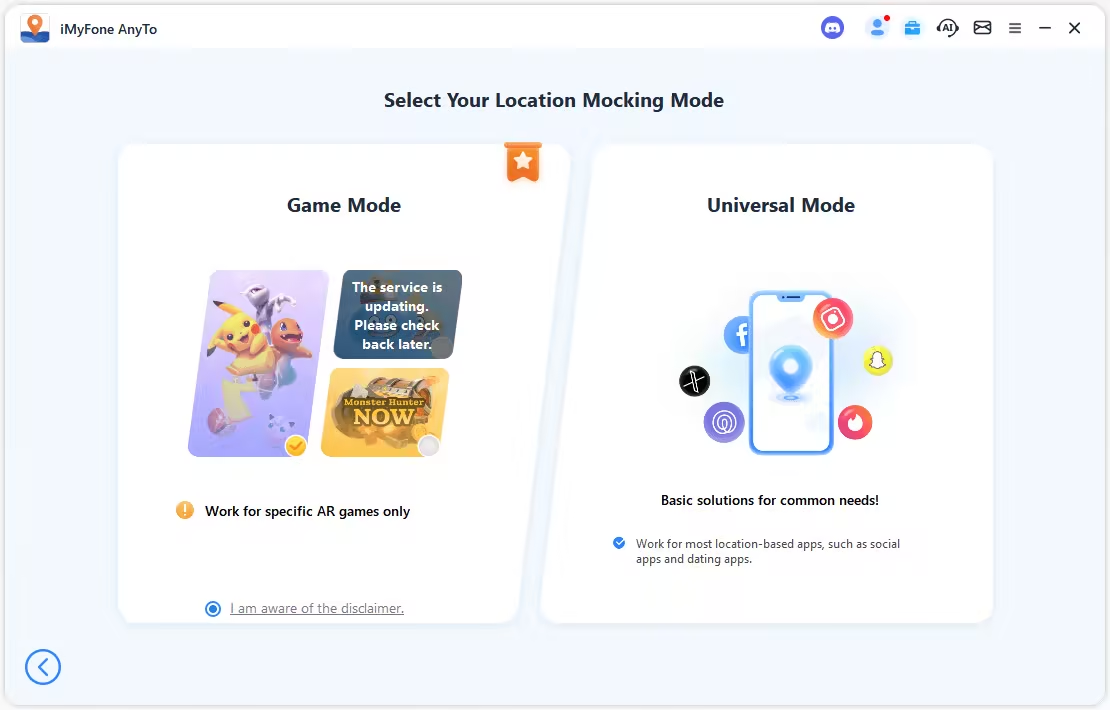
If you're using AnyTo for spoofing in Pokémon GO, make sure to choose Game Mode to prevent detection.
Save 10% Today!
Coupon Code: Ryan2025

 AnyTo Discord Server
FAQs about iAnyGo Pokémon GO
Is iAnyGo safe?
Yes, iAnyGo is generally safe to use for spoofing in Pokémon GO, especially when using its Bluetooth connection method. It carries a lower ban risk compared to older mods or tethering methods. However, always follow safe spoofing practices and avoid suspicious third-party tools.
Does iAnyGo work in Pokémon GO?
Yes, iAnyGo works with Pokémon GO, but occasional errors can occur due to game updates, missing drivers, or incorrect setup. Most common issues can be fixed using the troubleshooting steps outlined above.
How to get iAnyGo for free?
iAnyGo is a paid tool, and there's no official free version. Be cautious of websites claiming to offer free downloads, as these are often unsafe or pirated. The safest way to get iAnyGo is through the official Tenorshare website.
Conclusion
iAnyGo remains a reliable tool for spoofing in Pokémon GO. While errors like "Failed to detect location 12" or driver issues may occur, most can be fixed with proper troubleshooting.
If you've ever struggled with iAnyGo not working in Pokémon GO, consider AnyTo, the best iAnyGo alternative that offers Bluetooth-based spoofing, stable GPS control, and helpful support. Whether you continue using iAnyGo or switch to AnyTo, both options let you enhance your Pokémon GO experience safely and effectively.


Ryan Miles is a seasoned gamer and mobile strategy writer with over 5 years of hands-on experience in Pokémon GO spoofing and GPS-based games. Known for breaking down complex location tricks into beginner-friendly guides, Ryan’s mission is simple: help you explore more, catch faster, and play smarter without ever leaving home.
-
How to Get Metal Coat in Pokémon GO (2026)
A complete 2026 guide to finding and using Metal Coat in Pokémon GO. Discover drop methods, best tips, and how AnyTo helps you farm rare items faster.
4 mins read -
What Are the Pokémon GO 50km Reward and How to Get it [2026]
Discover everything about the Pokémon GO 50km Adventure Sync rewards. learn the easiest way to claim them and why your Pokémon GO is not tracking steps.
17 mins read -
WeCatch Pokémon GO: Everything You Need to Know in 2026
Wondering if WeCatch for Pokémon GO is safe in 2026? Learn its features, problems, ban risks, and why AnyTo is the best alternative for rare Pokémon hunting.
6 mins read -
How to Get Master Ball in Pokémon GO 2026 Full Guide
Learn how to get the Master Ball in Pokémon GO 2026, the rarest type with a 100% catch rate. Discover how to use it wisely & the best Pokémon to save it for.
5 mins read -
[Guide] How to Fly in Pokémon GO Without Getting Banned
Learn what “flying” means in Pokémon GO, the best tools to do it, common problems you may encounter, and what to avoid to keep your account safe!
4 mins read -
How to Make a Gym or PokéStop in Pokémon GO (2026 Guide)
Learn how to create a Gym or PokéStop in Pokémon GO, how to submit nominations, what locations are not allowed, and tips to boost your approval chances.
22 mins read
Was this page helpful?
Thanks for your rating
Rated successfully!
You have already rated this article, please do not repeat scoring!